
Apple HomeView First Look: Beautiful Hardware, Frustrating Limits
Apple’s HomeView combines beautiful hardware and surprisingly strong sound with frustrating app limitations and inconsistent Matter robot vacuum controls.

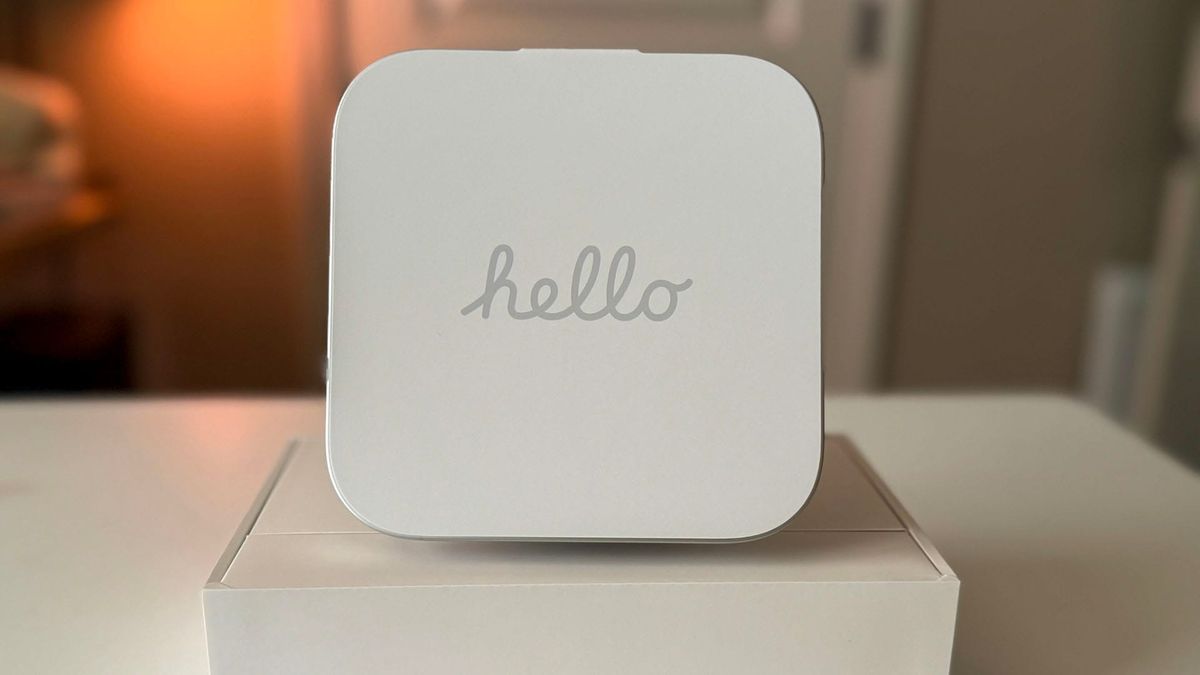
Apple’s HomeView is a beautifully built smart display that I like more than I expected. After using it with the growing army of robot vacuums taking over our home, I’m also less convinced it is ready to be their control center.
The hardware feels premium. The speaker delivers more bass than its size suggests and customizable home controls make sense on a device designed to live on a counter.
But inconsistent smart home controls and an unexpectedly phone-dependent experience took some excitement out of Apple’s newest addition to our home.
For this review, I focused on unboxing, setup and everyday use with Matter-compatible accessories, including the Narwal Flow 2, Roborock Saros 20 and Eufy Omni S2.
These are early impressions, and software updates could change the experience. For now, HomeView feels like a product with a strong foundation and plenty of unfinished work.
Apple Still Makes Great Cardboard
In typical Apple fashion, even the cardboard made a good first impression.
The thick white box featured HomeView on the front, complete with a carefully selected family photo on its display. No wall of specifications, compatibility charts or gaudy “Works with” labels.
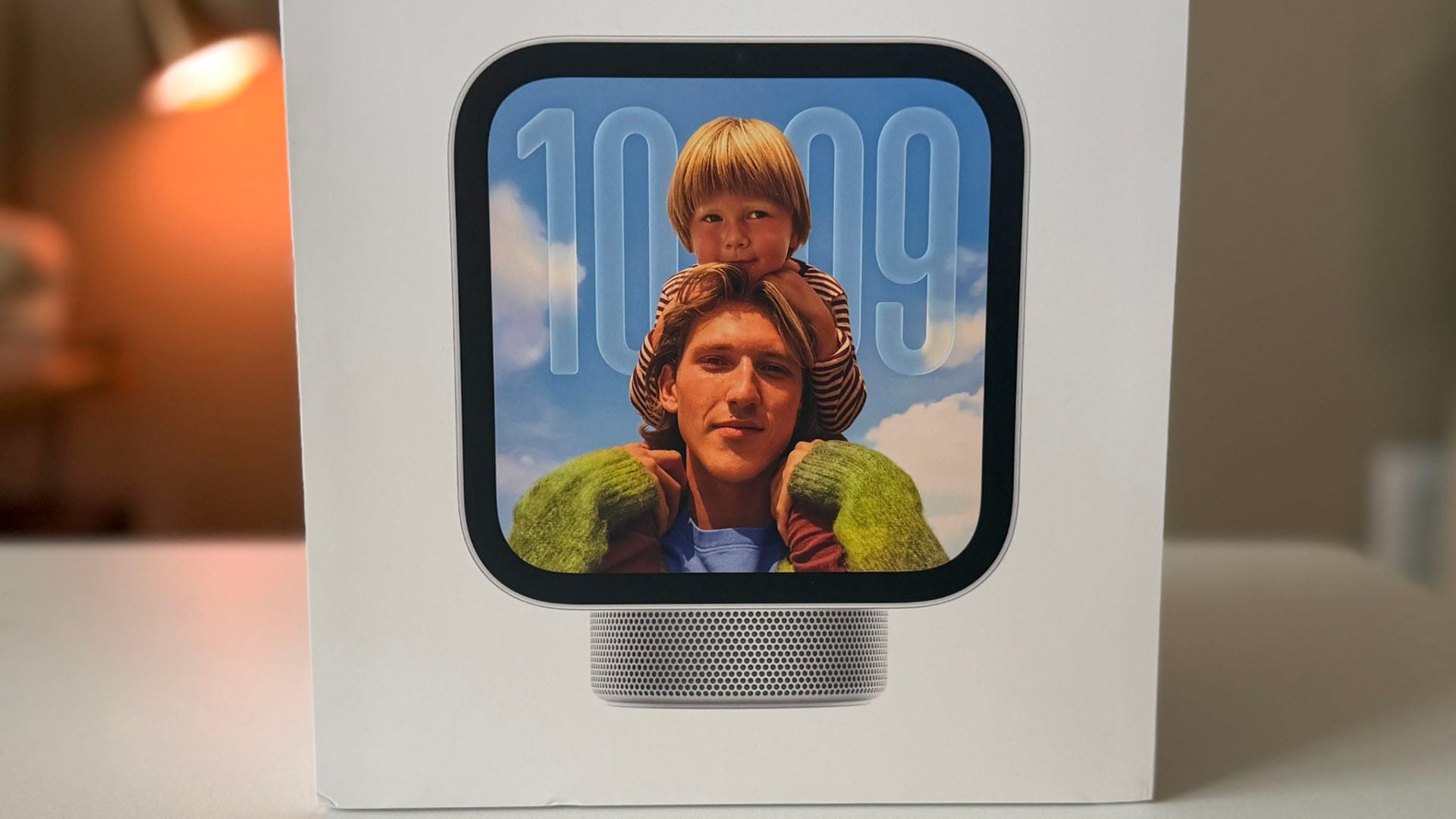
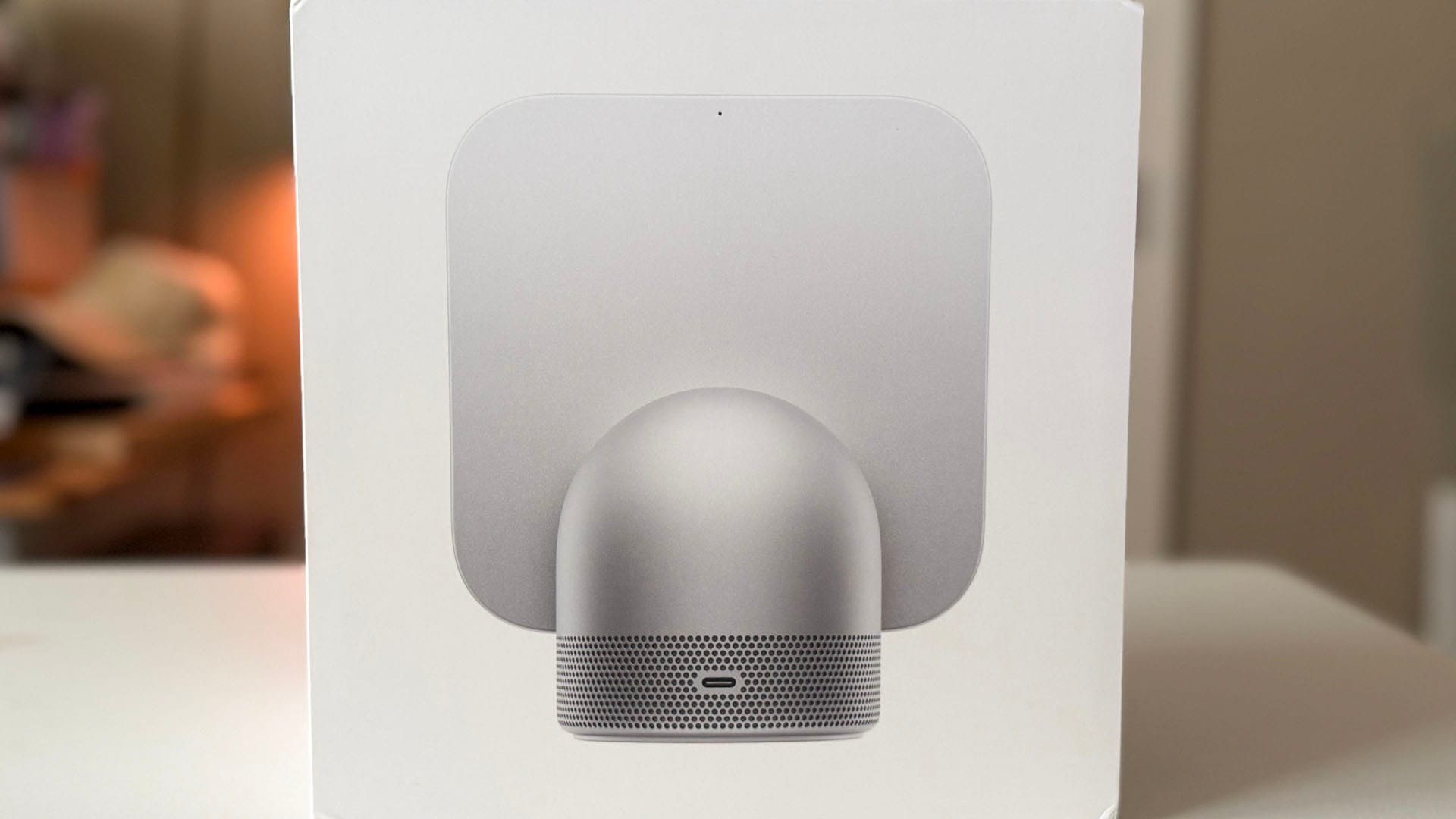
HomeView’s packaging keeps things simple, with a product image on the front and none of the usual compatibility labels.
Inside, a “Hello” protective sheet covered the square display, which looks a little like an Apple Watch and an iPad had a few drinks.
The floating screen and domed base reminded me of the iMac G4, still one of my favorite Apple designs.
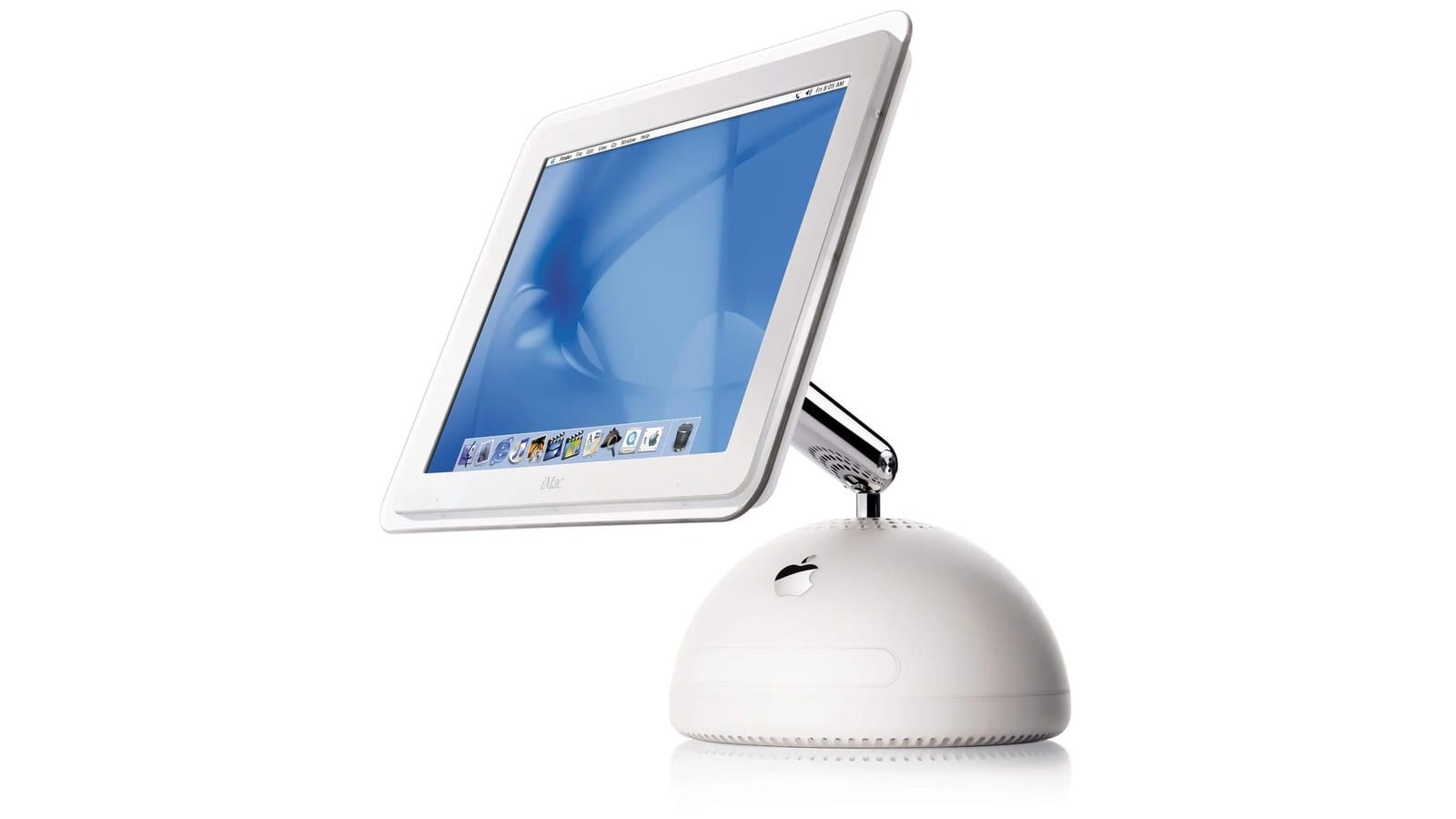
The base feels solid and has enough weight to give the device a reassuring heft. Its speaker perforations even resemble the pattern on the back of my Mac Studio.
This is an expensive device, and the hardware looks and feels the part.
One thing stood out immediately. HomeView has no physical buttons for adjusting the volume or muting the microphone.
An Easy Setup, Then a Less Seamless Experience
I connected the included 30-watt power adapter and USB-C cable, which felt short for where I wanted to place HomeView.
When the device turned on, it played its own startup chime. Even that initial sound had surprisingly more bass than my HomePod mini.
Setup began much like pairing an Apple Watch or AirPods. HomeView appeared on my iPhone automatically, and connecting it was straightforward.
Then came the software update.
Normally, an update screen would barely merit a mention. This one had flowing purple circles and HomeView lettering that enlarged and glowed as the installation progressed.
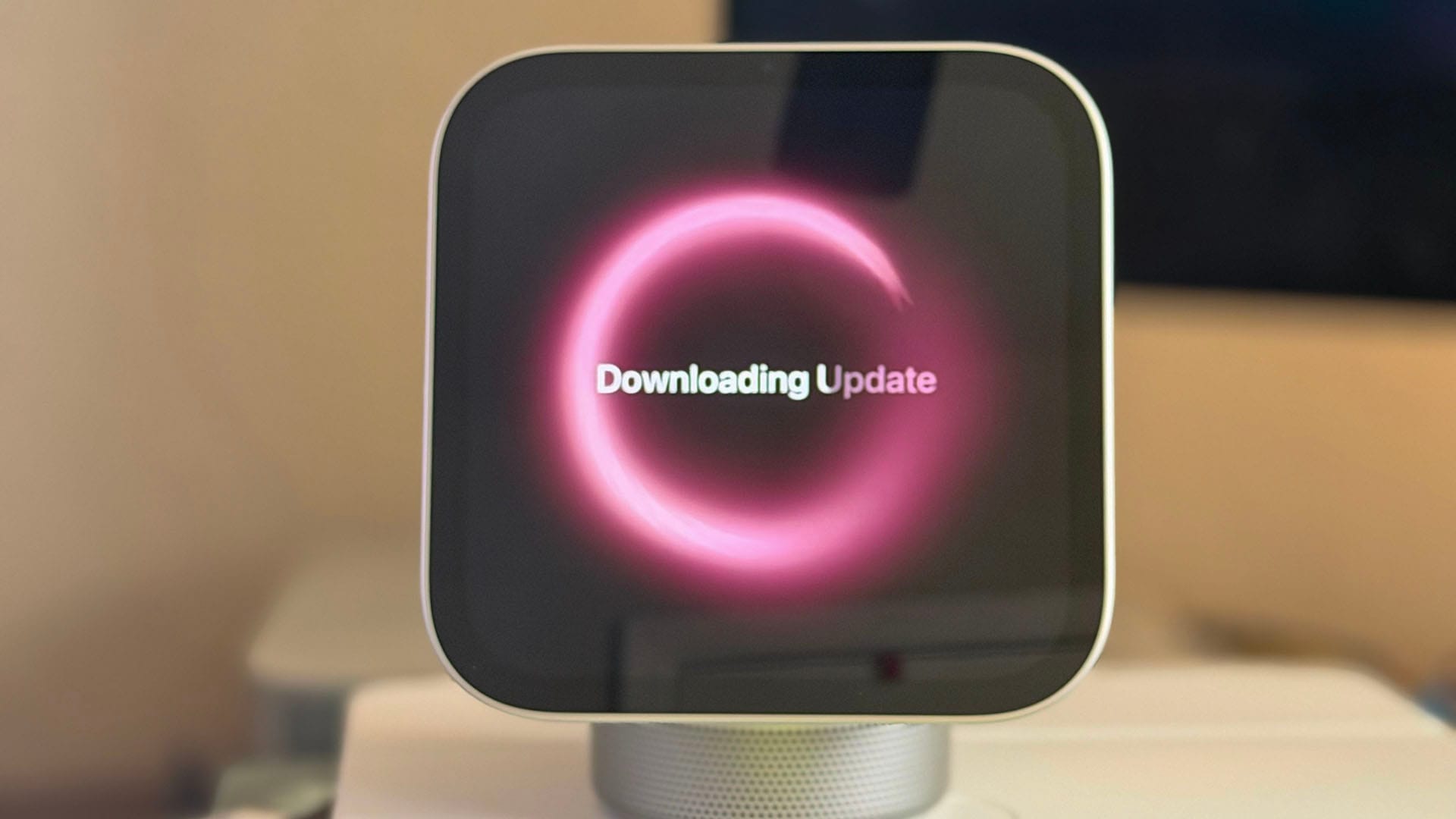
It was unnecessarily mesmerizing. I watched it anyway.
After a restart, HomeView was ready. That was also where the experience became less seamless.
Getting my photos onto the display required my iPhone, and the process did not work as expected at first. Once the photos started appearing, I could customize the default face, which felt familiar from the Apple Watch.
For a Wi-Fi-connected Apple display, I expected smoother access to the photo library I already keep in iCloud. Showing those photos on a dedicated home display should feel effortless, but getting there took more patience than I expected.
Robot Vacuum Controls Need Work
The Home app will look familiar to anyone who has used it on an iPhone or iPad.
That familiarity makes it easy to get started, but I was disappointed Apple did not rethink the interface more substantially for a dedicated home display.
Scrolling through grids of lights, outlets, sensors and other accessories has never been my favorite way to manage my smart home. Putting that interface on another screen does little to change my opinion.
Being the VacuBots Editor, naturally, the first accessory I tried was the Eufy Omni S2.
It appeared in its assigned room, and pressing and holding its tile opened controls similar to those on my iPhone.
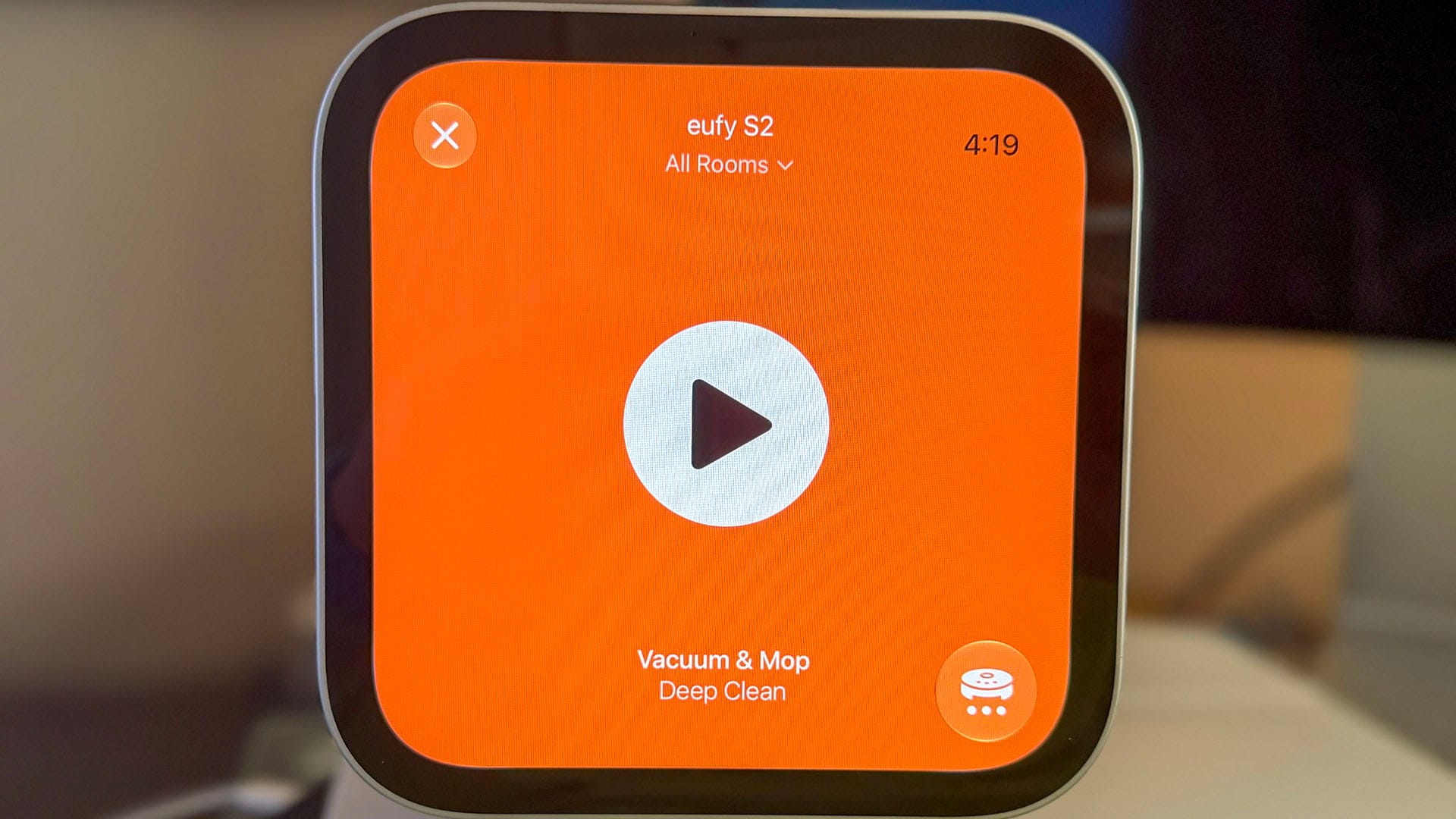
Then the problems started.
Commands offered little feedback, leaving me waiting to see whether anything was happening. The Eufy Omni S2 appeared confused about which room it was supposed to clean, and changing cleaning modes caused the Home app to become unresponsive.
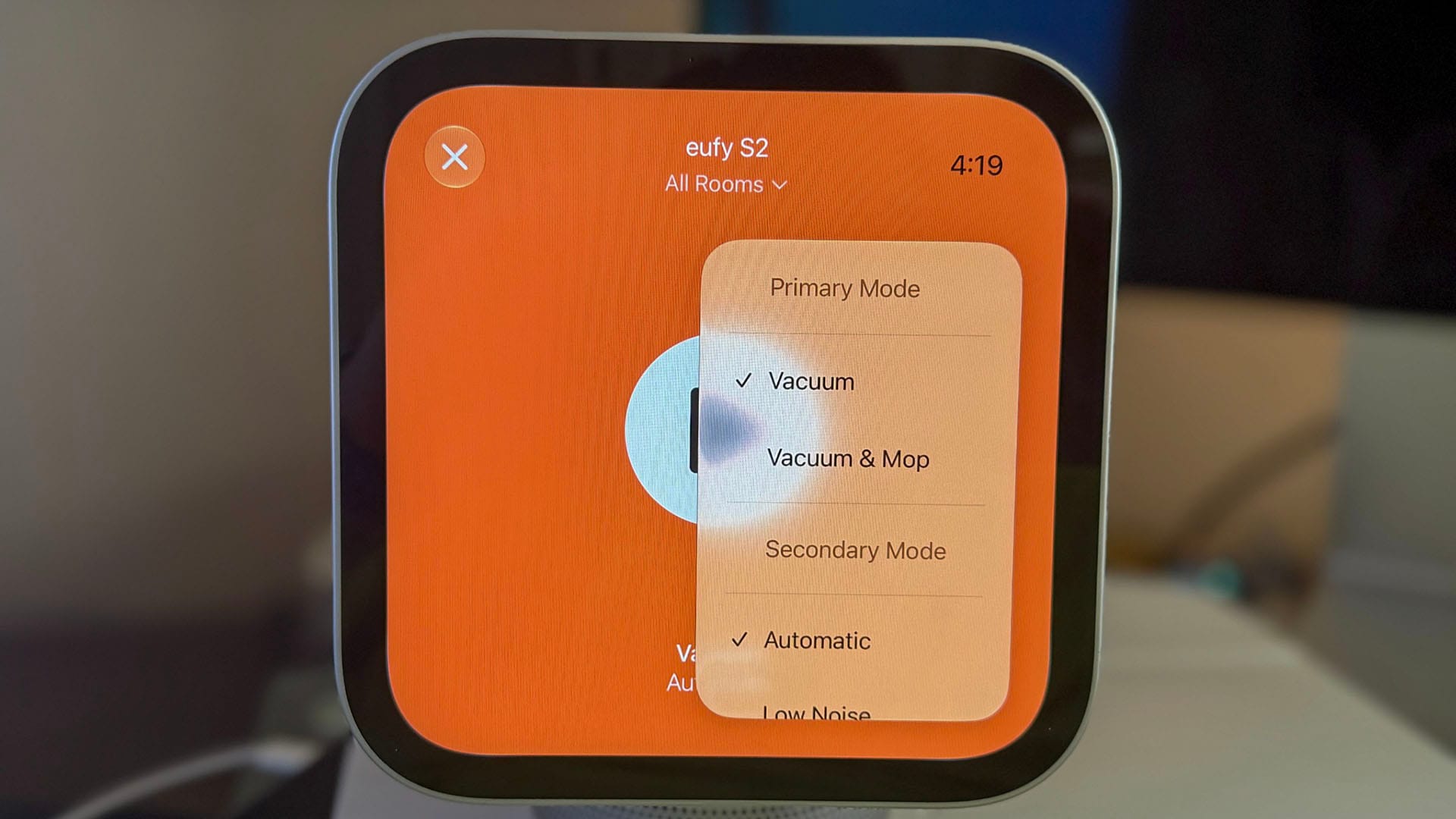
Similar inconsistencies also occurred with the Narwal Flow 2, Roborock Saros 20 and other third-party Matter accessories.
I could not determine whether those problems originated with the HomeView hardware, its Apple Home app or the individual accessories’ Matter implementations. What mattered in daily use was that the controls did not behave reliably.
A dedicated display should make starting a cleaning job easier. During my testing, I sometimes spent more time wondering whether a command had worked than I would have spent opening the robot’s own app.
For a product intended to help manage the home, that needs to improve.
Custom Faces Make More Sense
HomeView’s customizable faces offer a better approach, letting me place favorite accessories directly on a face and swipe between groups without opening the Home app.
I created a separate face for each room, putting the controls I use most within easy reach.
That felt more useful than working through the full accessory grid. It also gave me a clearer sense of where HomeView could fit into our daily routine.
The appeal is simple. Walk up, find the accessory and use it. When the controls respond properly, that is exactly what I want from this device.
Music and Face Recognition Fare Better
Music playback generally worked well, although I encountered occasional quirks during launch weekend.

The speaker remained one of the stronger parts of the experience. For such a compact device, HomeView produces a surprising amount of bass.
Face recognition also worked well in my testing.
I set it up with a beard, trimmed the beard the following day and had no trouble getting HomeView to recognize me or show my personal content.
Apple calls this face recognition, and it should not be confused with Face ID on your iPhone. Access to personal content depends on a paired iPhone or iPad being present, connected to the same Wi-Fi network and recently unlocked.
Facial recognition has been one of the less troublesome parts of my experience so far.
The App Limitations Are Hard to Ignore
HomeView includes some full built-in apps such as Home, Music, FaceTime, Safari and Weather, while other experiences are streamed from a paired iPhone.
The fact that it has a fairly capable A18 processor makes the limited app experience harder for me to understand.
I did not expect every iPad app to work here, but I expected more that what's initially offered.
The hardware invites you to imagine more uses for it, but the software brings those expectations back down to reality quickly.
That is particularly frustrating for someone already paying for Apple One. I want this device to make accessing Apple’s services easier without feeling tethered to my phone.
I Like It, but That Is Not Enough
Despite the frustrations, I like HomeView.
I like the design, the speaker and the convenience of having my favorite home controls available without reaching for my phone.
I also keep looking at the Apple Vision Pro sitting unused on my desk.
I liked it, too.
My concern is whether Apple will give HomeView the development resources it needs to prosper. The hardware is appealing, but its usefulness will depend on better software and a broader range of things worth doing on its screen.
For people already invested in Apple Home, there is an understandable appeal here. This is the kind of device many of us have wanted for years.
But I would hesitate to recommend buying it primarily to control Matter-compatible accessories or your robot vacuum army. My experience has been too inconsistent.
HomeView does several things well enough to make me want to keep using it. It also leaves enough unfinished that I would be hesitant to purchase it again.
I’ll continue testing our accessories and watching for software updates. Apple has built something I want to use. Now it needs to make the experience dependable enough that I stop reaching for my phone.
Pricing and Availability
Apple lists both the tabletop HomeView and wall-mounted version at $299 in the United States. The tabletop model includes a speaker base, USB-C cable and power adapter. The wall-mounted model has built-in speakers but lacks the speaker base, cable and power adapter. Its required wall mount is also sold separately.
Yes, the wall-mounted version comes without a wall mount.
Schneider Home makes compatible mounts. Options include a USB-C wall connector starting at $59.95 and an AC-wired mount starting at $79.95. A Power over Ethernet mount is scheduled for early 2027 at whopping $129.95.
I went with the version Apple lets you use straight out of the box.
Finding one this holiday season may be the bigger challenge. Availability has been spotty, and I found mine at Verizon.
If Apple and the usual retailers are out of stock, the place you pay your phone bill might have your next kitchen speaker.
Now I’m hoping future updates make it as easy to live with as it is to look at.